
If you’ve been looking into how to mod Genshin Impact, the big thing to understand right away is that this scene is mostly about visuals, not gameplay hacks. By 2026, Genshin modding has become a pretty established niche built around skin swaps, texture edits, model imports, and a handful of visual quality-of-life tweaks. Tools like XXMI Launcher, 3DMigoto, and GI-Model-Importer are basically the core of the ecosystem now, with most mods circulating through GameBanana and GitHub. In this guide, we’re breaking down the full process, the actual risks on official servers, the standard setup flow, common fixes, and the separate private server route for players who want to test things without putting a main account on the line.
How to Mod Genshin Impact Safely
Before you install anything, you need to be realistic about the risk. Genshin Impact is a live-service game running on official HoYoverse servers, and third-party modifications are still against the Terms of Service. Even if enforcement has generally been lighter toward client-side cosmetic mods, there has never been an official green light, and there’s no such thing as a guaranteed safe setup.
That said, not all mods carry the same level of danger. Cosmetic mods like outfit swaps, texture replacements, and model edits only change what your own client renders. They do not send altered gameplay data back to the server. Cheat-style mods are a completely different story, since they touch values the server actually checks.
Cosmetic mods such as skins, texture overrides, and model swaps are generally seen by the community as low-risk, but not risk-free. Cheat mods like god mode, teleport hacks, stamina manipulation, or damage edits are basically asking for a ban. And those shady “Unlimited Primogems” APKs floating around random sites? Treat them as both account killers and possible malware.
| Mod Type | Examples | Ban Risk | Server Interaction |
|---|---|---|---|
| Cosmetic skin swap | Character retextures, outfit mods | Low | None |
| Model importer | Custom meshes via GI-Model-Importer | Low–Medium | None |
| QoL visual | UID hider, fog remover, culus viewer | Low | None |
| FPS unlocker | Frame cap bypass | Medium | Indirect |
| Cheat engine / resource hack | Primogem injection, god mode | Very High | Yes |
| Mod APK (Android) | "Unlimited everything" APKs | Certain | Yes |
If you care about your main account, there are a few rules you really should not ignore:
-
Do not mix mods with an FPS unlocker unless you’ve confirmed the setup works through XXMI Launcher’s integrated support.
-
Keep loaders and mod files outside the main game folder when possible, especially tools and executables.
-
Only use mods that match your current game version, because outdated shader buffers are one of the fastest ways to trigger crashes.
-
Back up
Modsandd3dx.inibefore every patch, no exceptions.
That last point matters more than people think. A lot of modding headaches after updates come down to players skipping backups, then trying to guess what broke.
Genshin Impact Mod Tools and Setup
The standard Genshin modding toolchain in 2026 revolves around 3DMigoto, which is an open-source DirectX 11 hook framework, and GIMI (Genshin Impact Model Importer), the game-specific wrapper built around it. Most players now install and manage all of this through XXMI Launcher, which has made the whole process way less messy than it used to be.
Before XXMI became the default option, modding Genshin was a much more manual job. You had to place 3DMigoto files yourself, edit d3dx.ini, and make sure injection timing lined up correctly. XXMI handles most of that for you and also helps with version syncing, which is a massive quality-of-life improvement.
If you want to create mods instead of just installing them, GI-Model-Importer is still the main toolkit people use. It relies on Python-based scripts to extract mesh and texture data from the game’s asset bundles, lets you edit those assets in Blender, and then re-injects them as .buf and .dds files that 3DMigoto can intercept during rendering. The project is hosted on GitHub under SilentNightSound and, with over 3,000 stars, it’s still the community benchmark.
Platform matters here too. On Windows 10/11, the usual setup places XXMI near the game directory, while the actual mod files live in [GenshinInstallPath]\3dmigoto\Mods\. On Steam Deck, things are a little less straightforward. The most reliable 2026 options are either running XXMI through Proton or using Twintail Launcher (https://twintaillauncher.app), which supports Linux natively and avoids a lot of the ugly manual Wine or Proton tweaking. Standalone 3DMigoto on Steam Deck can work, but honestly, it tends to be more trouble than it’s worth, especially with the memory allocation errors users keep reporting.
Before you start installing anything, make sure these basics are covered:
-
A fully updated Genshin Impact client, checked through HoYoPlay or the standalone launcher
-
Visual C++ Redistributables 2019 or newer installed on Windows
-
A backup of your previous
Modsfolder if you’re updating from an older version -
DirectX 11 enabled in practice, since Genshin usually defaults to DX11 but it’s still worth confirming
How to Mod Genshin Impact Step by Step
For the standard cosmetic workflow, XXMI Launcher is the cleanest place to start. Download the latest release from the official GitHub page, then extract it somewhere outside your Genshin Impact install folder. A separate Tools directory on the same drive works well and keeps things organized.
After that, run XXMI Launcher as administrator. Open the Settings menu and point the Game Install Path to the root folder that contains GenshinImpact.exe. If that path is wrong, nothing else is going to behave properly, so double-check it before moving on.
Next, head to the GIMI tab in XXMI and click Install/Update GIMI. The launcher will grab the correct 3DMigoto build for your current Genshin version, place the files where they need to go, and generate the Mods folder if it doesn’t already exist. That part is mostly automatic, which is why XXMI is the go-to recommendation now.
Once GIMI is installed, take any downloaded mods—usually .zip files from GameBanana—and extract them into [GenshinInstallPath]\3dmigoto\Mods\. Each mod should sit in its own clearly named subfolder. Don’t dump everything loose into Mods, or troubleshooting later becomes a nightmare.
To actually launch with mods enabled, use the Launch button inside XXMI Launcher. Don’t open the game through HoYoPlay, and don’t rely on a direct desktop shortcut to GenshinImpact.exe. The loader has to inject before the game fully initializes, and XXMI handles that timing. Once you’re in-game, press F10 to reload mods and save settings. That key is your main test. If the mod is working, you should see the change right away in the relevant scene.
Skin and model mods
Skin mods are still the most popular category, and most of them work by replacing .buf vertex buffer data and .dds textures tied to a character’s draw calls. If you’re installing a character swap, make sure the mod was built for your current game version. HoYoverse updates shader passes often enough that older character mods can break without warning.
GameBanana pages usually list compatibility, and you should absolutely check that before installing. It saves a lot of guesswork.
Texture replacement mods are usually a bit more forgiving. Since they target diffuse maps and normal maps instead of geometry buffers, they tend to survive patch changes better than full model swaps. They’re a good starting point if you want something simple and less likely to break after maintenance.
One thing to watch for is animation mismatch. If a modded model has different proportions from the original rig, you can get clipping, awkward weapon positions, or weird-looking cutscene poses. It won’t affect gameplay, and it isn’t something the server detects, but visually it can look rough. If you’re downloading a bigger character swap, it’s smart to skim the mod’s issue tracker on GameBanana or GitHub first and see whether people are reporting rigging problems.
Private server mod route
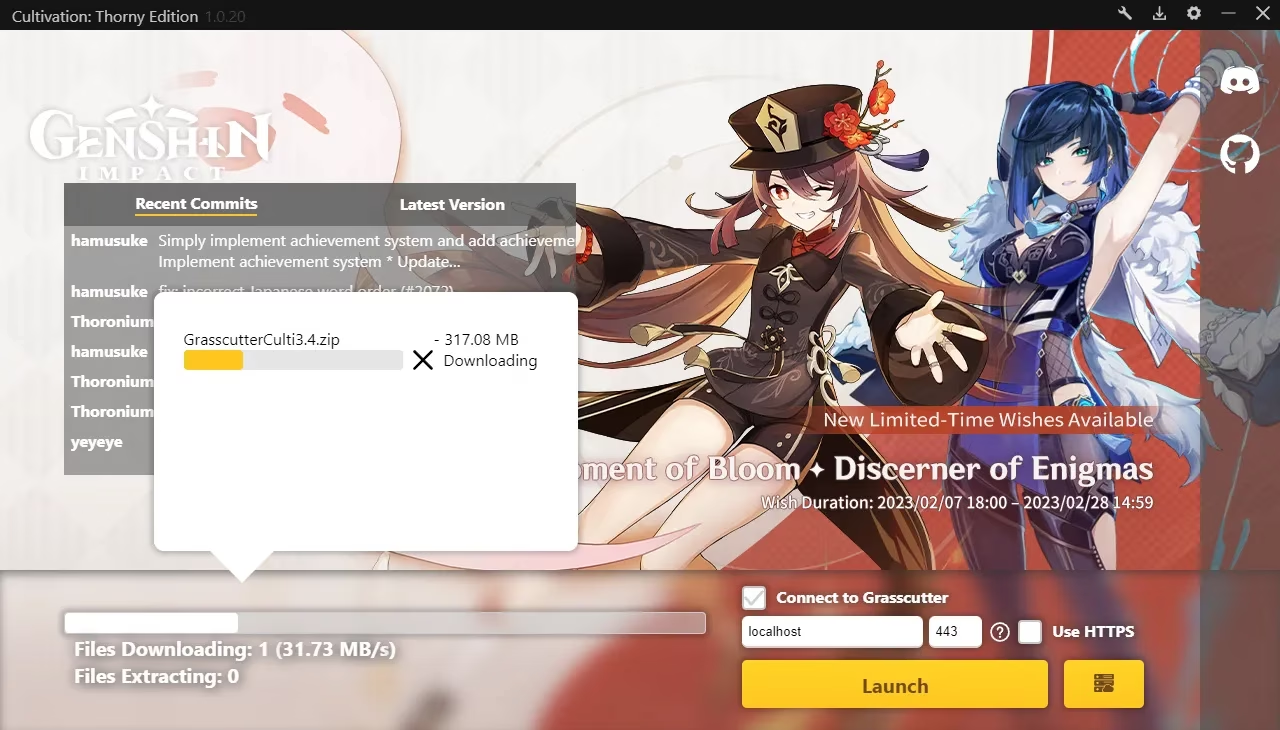
If you want to experiment more freely, or just don’t want to touch your main account at all, the private server route is the safer sandbox. In that setup, Cultivation Launcher is the main tool used to connect the Genshin client to a Grasscutter private server through a local proxy that redirects network traffic.
As of 2026, the Thorny Edition fork of Cultivation is the version most people recommend. It has cleaned up a number of older issues, especially around 3DMigoto path detection and RSA patch handling, which made earlier releases a lot more fragile than they needed to be.
The usual Grasscutter connection flow looks like this:
-
Run Cultivation as administrator.
-
Set your game install path in the options menu.
-
Use the Downloads section to grab the Grasscutter All-in-One package.
-
Click Connect with Grasscutter.
-
Enter
localhostas the address. -
Enter port
443. -
Leave HTTPS disabled.
Cultivation then applies a small RSA patch so the client authenticates against the private server instead of official HoYoverse infrastructure, and it restores the original files when the session ends.
Still, there’s one warning here that matters a lot. Cultivation’s own documentation notes that this patch technically modifies the client executable. Even if there are no documented ban cases from that patch accidentally touching official servers, the risk is not zero. You should keep a completely separate Genshin installation for private server use. Do not share the same install directory between official play and Grasscutter testing. That’s probably the most common mistake players make when they get careless with private server setups.
Genshin Impact Mod Problems and Fixes
A few issues come up over and over again, even for experienced modders. One of the most common is the transparent client crash, where the game opens as a blank transparent window and then dies. In most cases, that happens because 3DMigoto injects before DirectX finishes initializing.
If you’re using XXMI Launcher, this is usually handled automatically. If you’re trying to run standalone 3DMigoto, you’ll want to add a short delay before launching GenshinImpact.exe—for example, timeout /t 3 in a batch script. That small timing fix solves the issue surprisingly often.
Another common problem is F10 not reloading mods. Usually, this points to a conflict between 3DMigoto and an FPS unlocker. Both tools hook DirectX, and if the configuration in d3dx.ini isn’t set up correctly, they can step on each other. The GIMI community’s GameBanana tutorial (tuts/19132) covers the proper setup for running both through XXMI Launcher, and that integrated route is the one most players should stick with.
Shader stutter is also normal the first time a new mod loads. What’s happening is that 3DMigoto is recompiling HLSL shader overrides on first use. Those compiled files get stored in the ShaderFixes folder, so once the cache is built, the stutter usually goes away in later sessions. If you want to minimize it, load into a scene, press F10 to force the mod reload, then wait for compilation to finish before jumping into combat. The GameBanana tutorial at tuts/19671 explains that process in more detail.
Then there’s the FPS unlocker conflict where the game falls back to 60 FPS after a few minutes. In a lot of cases, that’s not the mod itself failing but HoYoPlay interfering with the process, either by reasserting priority or killing the hook. Running the whole chain through XXMI instead of juggling separate executables usually fixes it.
Best Genshin Impact Mods in 2026
By 2026, the most widely used Genshin mods are not flashy cheats or anything like that—they’re visual and exploration-focused tools maintained by the GIMI community and shared through places like playground.ru and GameBanana. For most players, these are the mods that actually feel worth installing.
A few of the standout options include:
-
Hide UID — removes your UID from the HUD, which is especially useful if you record or stream
-
Delete Watermark — clears the HoYoverse watermark from the screen for cleaner screenshots and videos
-
Culus Viewer — makes Anemoculi, Geoculi, and similar collectibles easier to spot on the minimap and in the world
-
Chest Lines — draws lines toward nearby unopened chests
-
Adventure Map+ — adds a lightweight in-game navigation overlay, including waypoint guidance with Alt+V
-
NoFog Ultra — removes distance fog across regions, including Natlan and Chenyu Vale, which is great for exploration and screenshots
Among these, Hide UID and Delete Watermark are generally considered some of the safest picks because they only affect HUD rendering. They’re simple, useful, and low-profile. Culus Viewer is another favorite because it cuts down the grind of collectible cleanup in a very noticeable way.
Chest Lines and Adventure Map+ are where things start feeling more powerful from a usability standpoint. They don’t alter server-side data, but they do give you information more directly than the base game does. For solo exploration, most of the community is comfortable with that. It’s still something you should use with common sense.
The grayer area is stuff like XRay Toggle and more aggressive map mods. These can reveal terrain-hidden chests, enemies, or routes in ways that clearly go beyond normal visual cleanup. They still don’t modify server data, but they do create an information advantage, especially in co-op. Because of that, a lot of modders treat them as acceptable for private or solo exploration and a bad idea in multiplayer content. And yeah, it’s worth repeating: even the “harmless” mods do not come with any promise that HoYoverse won’t detect them later if anti-cheat rules change.
Conclusion
Genshin Impact modding in 2026 is in a much more polished place than it used to be, but it still works best when you treat it carefully. If you want the safest possible entry point, start with XXMI Launcher, stick to cosmetic and visual QoL mods from trusted sources like GameBanana, keep everything version-matched, and never blur the line between official server play and private server installs.
For a beginner setup, it’s hard to go wrong with a small bundle: one character skin you like, Hide UID, and NoFog in separate folders under Mods. That gives you immediate visible results without making the setup overly complicated, and it helps you understand how the loader pipeline works before you move into bigger model imports.
On the other hand, some players should probably skip modding altogether. If your account is tied to content monetization, if a ban would seriously hurt you, if you care deeply about high-stakes account safety, or if you’re on mobile and thinking about the “Mod APK” route, it’s honestly not worth it. Those Android APKs are packed with fake anti-ban claims, cheat functions, and real security risks. For those players, staying unmodded is the smarter call.
This discussion is informed by Newzoo, whose market analysis helps contextualize why Genshin Impact’s mod scene has largely settled into client-side cosmetic customization: as live-service titles scale, players tend to favor low-risk personalization (skins, textures, HUD tweaks) over server-sensitive modifications that threaten account access and long-term progression.